Product mapping is essential to harmonize your data, as each source (POS, Sell-In, ERP, etc.) often uses a different coding to designate the same item. Without this correspondence, it is impossible to accurately analyze the overall performance of a product. Through mapping, all codings are grouped under a unique identifier in Pawa, which enables a clear, coherent, and consolidated view of sales, inventory, and forecasts across your different banners.
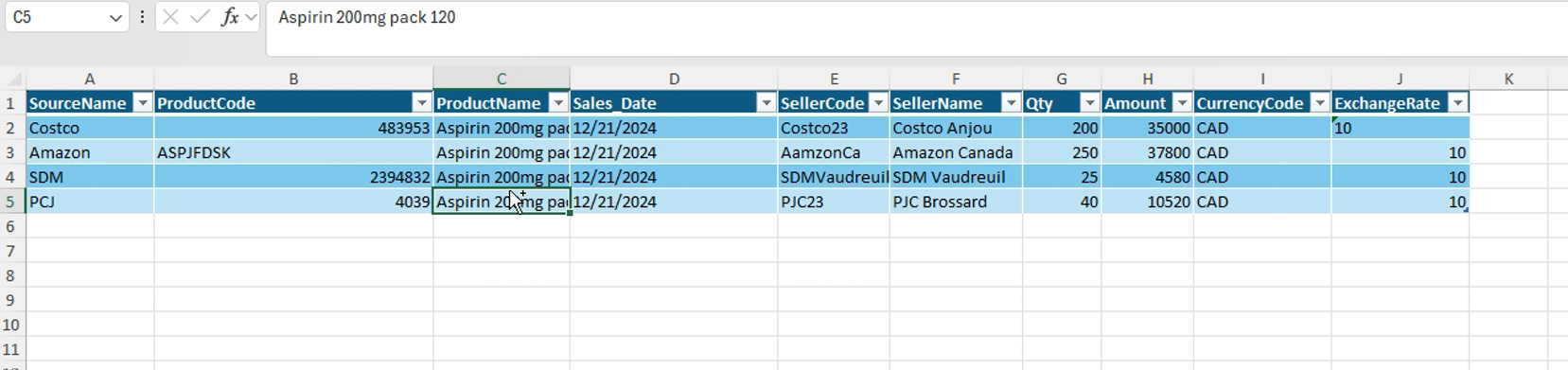
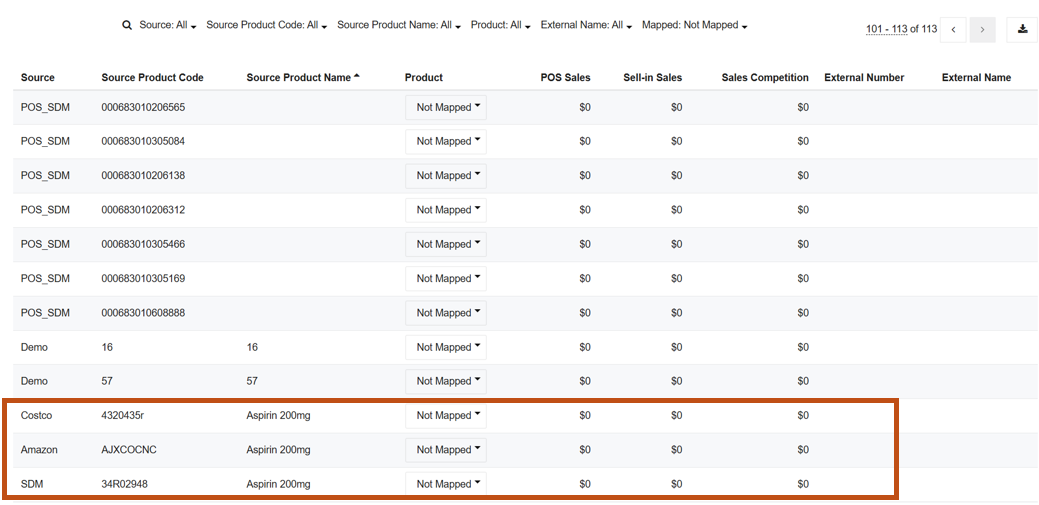
Let us take the example below. You can see that each retailer presents the same product (in this case Aspirin 200mg), but under a different code.
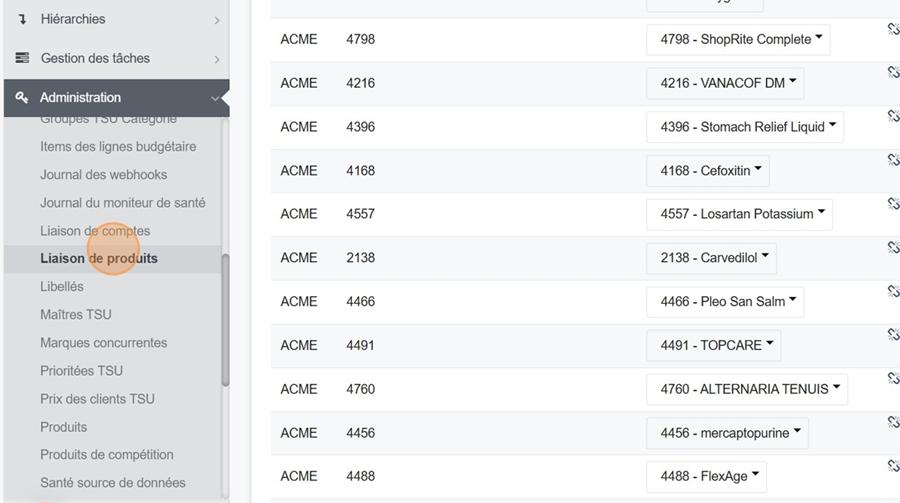
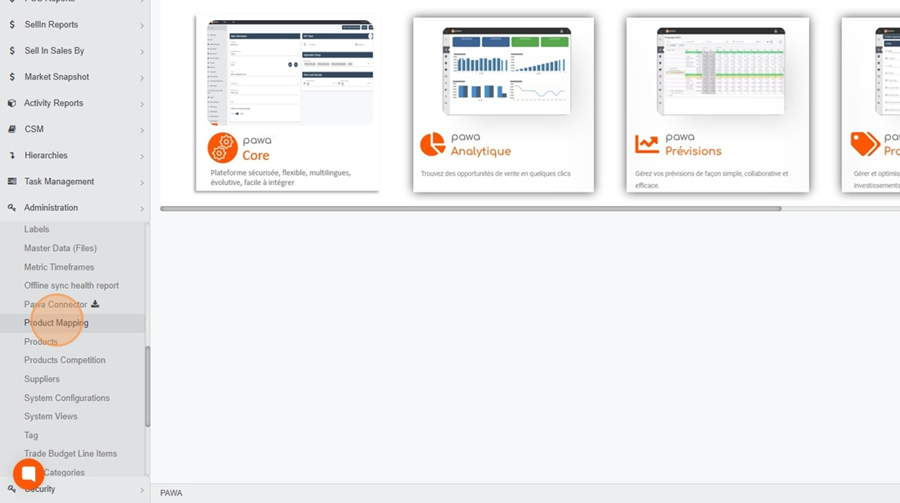
Go to the Administration section and select Product Mapping from the drop-down menu
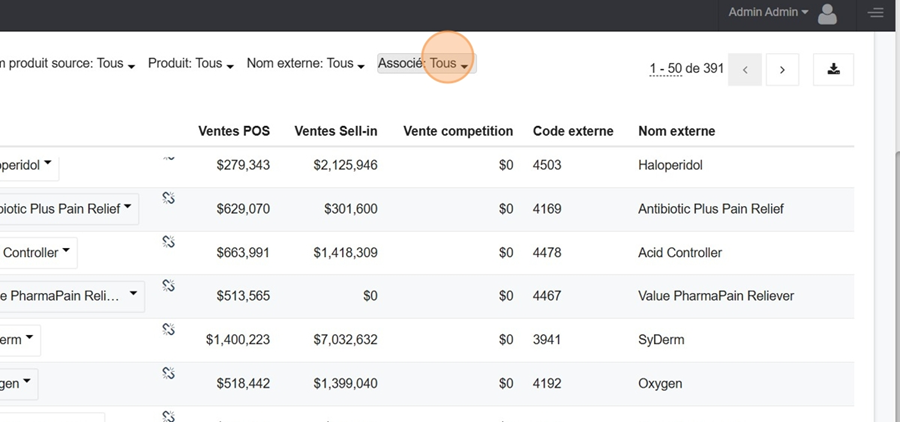
Click on the upper entry “Associated”: All, at the top of the page
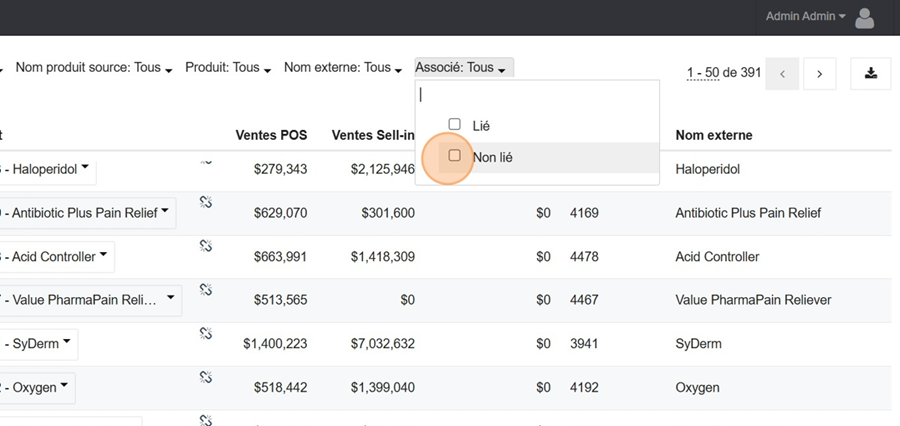
Select the Unlinked option in the dropdown menu to display all products. You can sort them in ascending or descending order by clicking on the headers
We therefore note here, in the list, the first 3 products that were in our original Excel file (top example). These are the unlinked codes. We will return to this later.
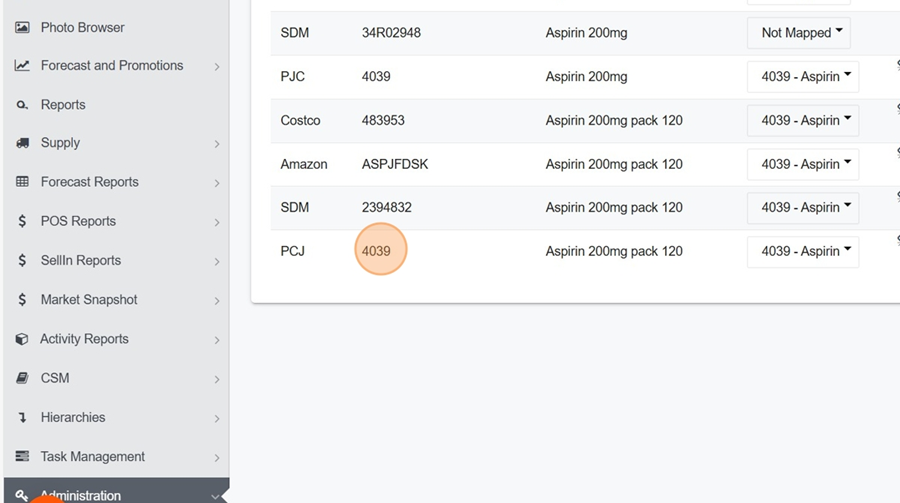
But above all, we notice that the product from PJC does not appear in the list, which means it has been linked correctly. Indeed, when looking at the product code that was entered in the Excel, we note it is the same as in the initial Pawa catalog
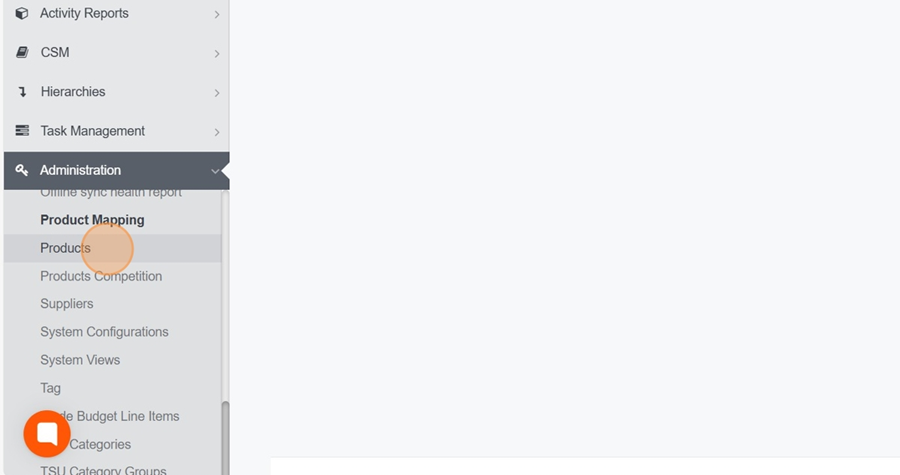
To verify this, simply go to the Product section under Administration
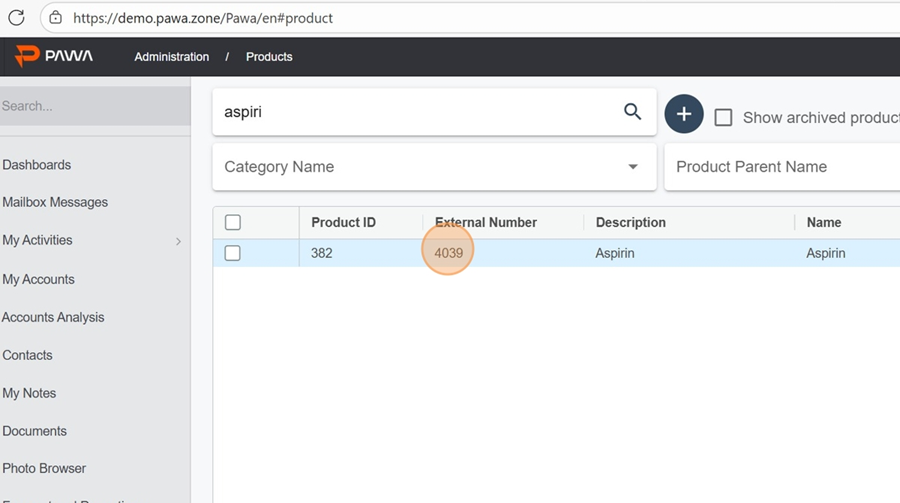
Then search for the product name and compare the code. We can thus see that when the same code is present in both systems, Pawa makes the link automatically. Therefore, we will not need to link this one.
For other unlinked products, return to the Unlinked section and search for the name of the product to be linked in the bar at the top left.
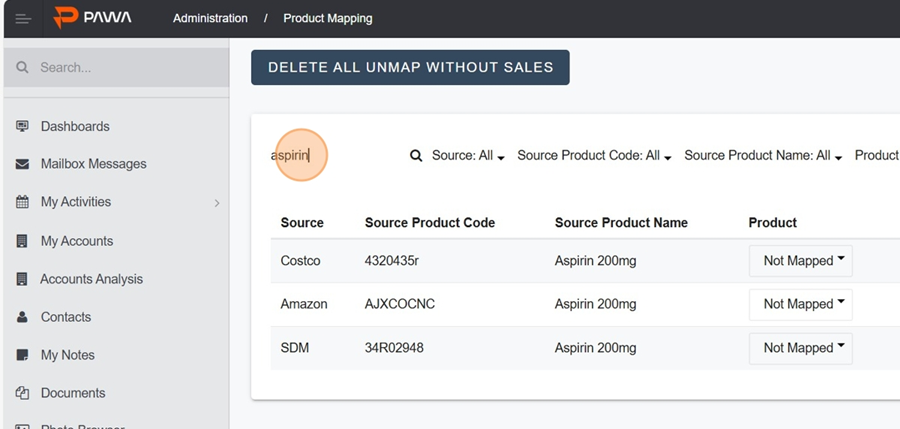
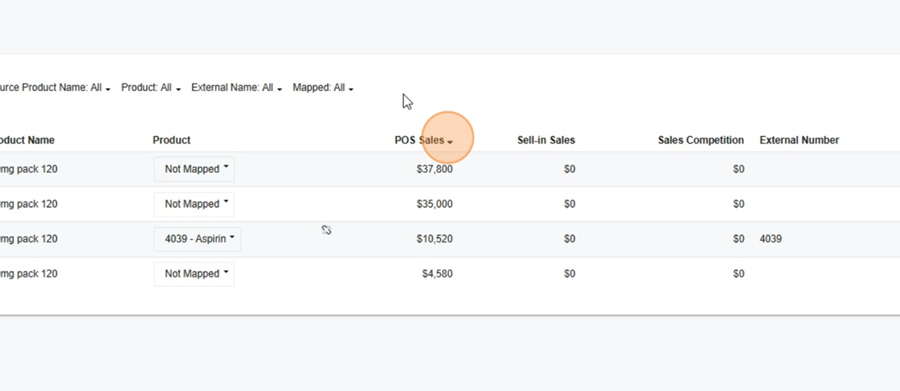
It is interesting to note that it is possible to sort the products by sales in ascending or descending order, simply by clicking on the POS sales category.
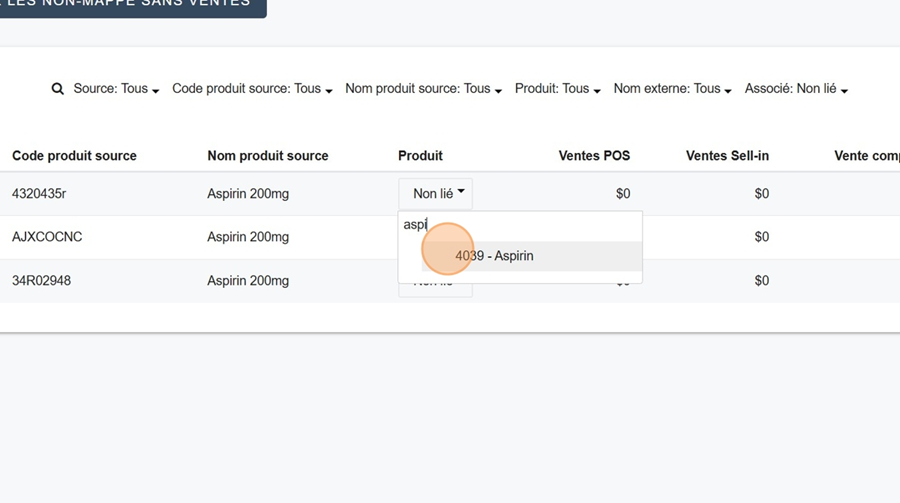
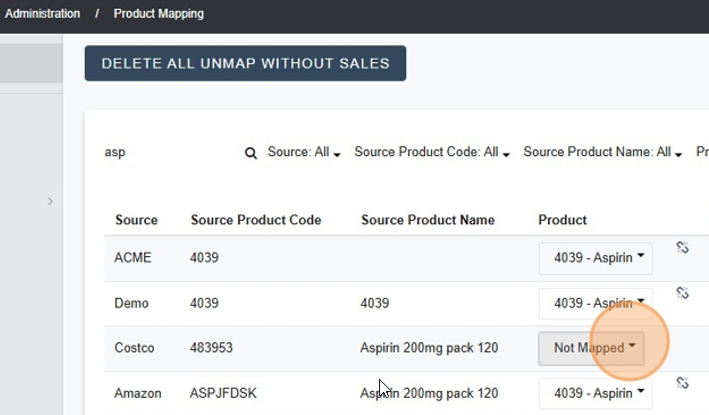
Then click on the Unlinked box under the product column and enter the name of the product you wish to link (in this example, Aspirin)
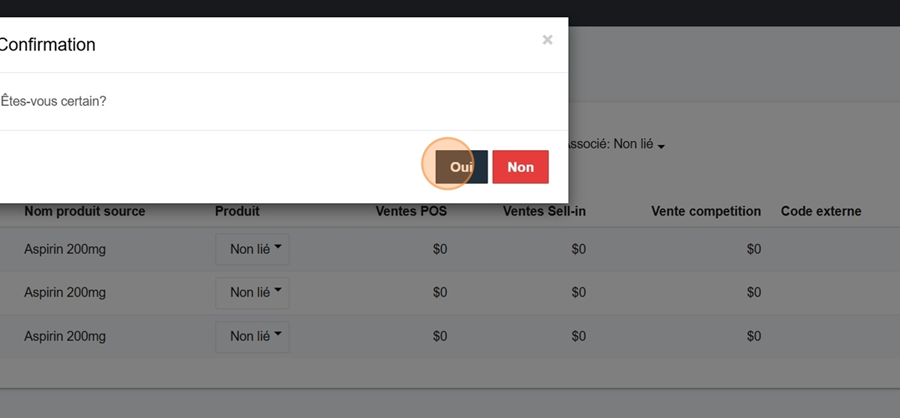
Confirm that you indeed want to link the product
You may remove or replace a linked product when an import has associated sales to the wrong item. By adjusting the link, you ensure that POS or Sell In data is gathered under the correct product in Pawa.
This is useful for:
• correcting a mismatch from the original file
• avoiding data being assigned to the wrong SKU
• ensuring the accuracy of reports and analyses
Once the link is removed, simply select the correct product to restore a proper match.
Go to the Administration section and select Product Link from the dropdown menu
Search for the product you wish to edit.
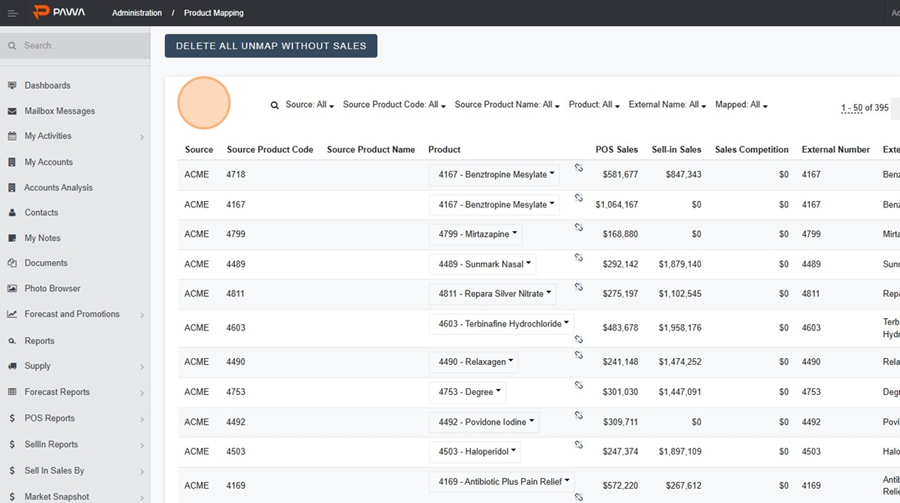
In this example, I am searching for the product 4039 – Aspirin. Click on the broken chain icon to remove the product link.

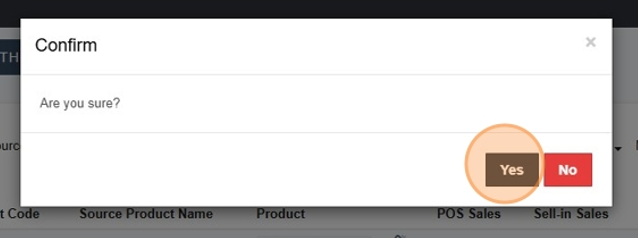
Confirm the removal of the link.
Next, select the correct product again in order to link the imported sales with the correct product in Pawa.
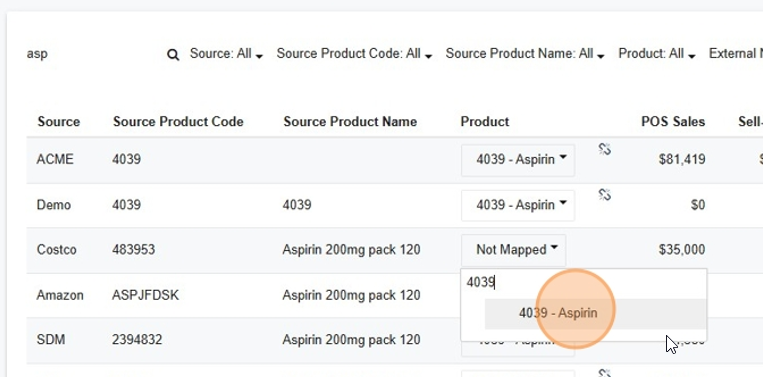
And confirm your choice.